

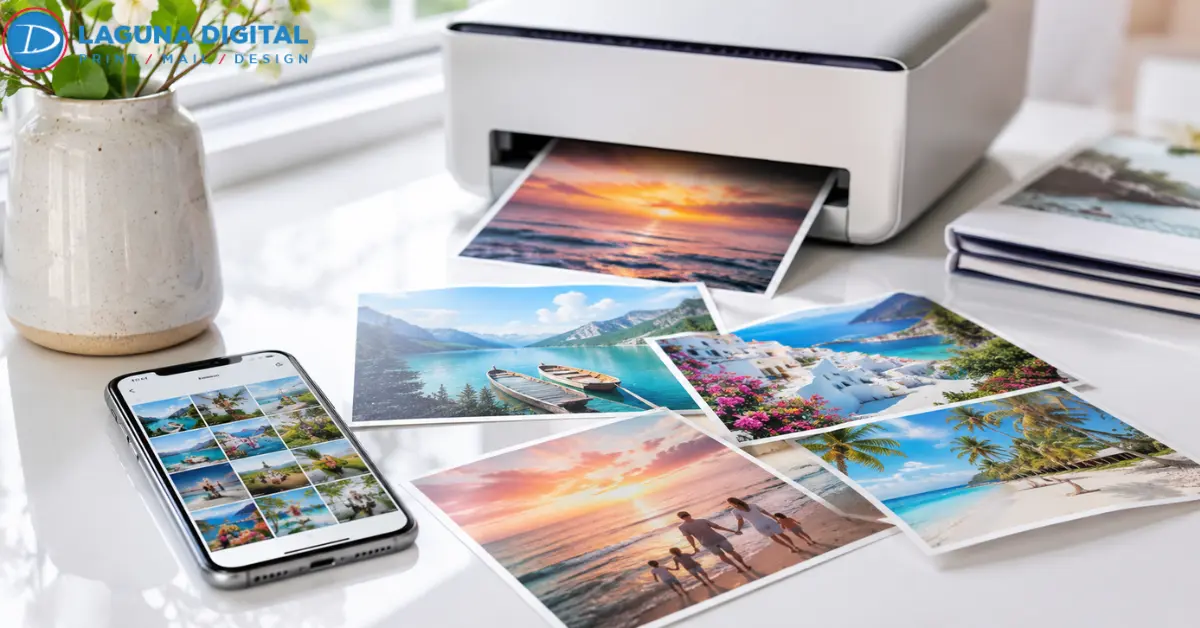
Most of us have thousands of phone pictures sitting in our camera roll, yet only a few ever make it onto paper. The problem is not that phones take weak pictures. Modern phones can capture plenty of detail for beautiful prints. The real issue is what happens after the picture is taken. A file gets cropped too much, sent through a chat app, brightened until skin tones look strange, or uploaded in the wrong size.
Good photo printing starts before the order is placed. It starts with keeping the best version of the image and making smart choices about size, color, paper, and finishing. If you want memories that look clean, sharp, and true to the moment, the steps below will help you get better results without making the process complicated.
Start With the Best Original File
Keep the Untouched Image: Always begin with the original photo from your phone, not a copied version from a text message or social app. Those copies often lose detail. For smartphone photo printing, the cleanest file usually comes straight from the camera roll or a direct computer transfer.
Avoid Social Media Downloads: Images saved from Instagram, Facebook, or messaging apps are usually compressed. They may look fine on a small screen, but break down on paper. Save the original before posting it anywhere, especially when you plan to use a trusted photo print shop later.
Choose the Right Capture: Use the highest available camera setting for important photos. Avoid heavy zoom because digital zoom cuts away detail before you even edit. For smartphone photo printing, a sharp normal shot usually beats a zoomed shot that looks soft when enlarged.
Use Natural Light: Soft daylight helps phones capture better color and smoother skin tones. Harsh indoor light can add noise, blur, or strange color casts. Stand near a window or shaded outdoor area when you want a family, product, or travel photo to print cleanly.
Clean the Lens Before Shooting: A smudged phone lens can create haze that no printer can fully repair. Wipe the lens with a clean cloth before taking photos you may want to print. This small habit protects fine detail in faces, fabric, food, and scenery.
Match the File to the Print Size
Check the Pixel Dimensions
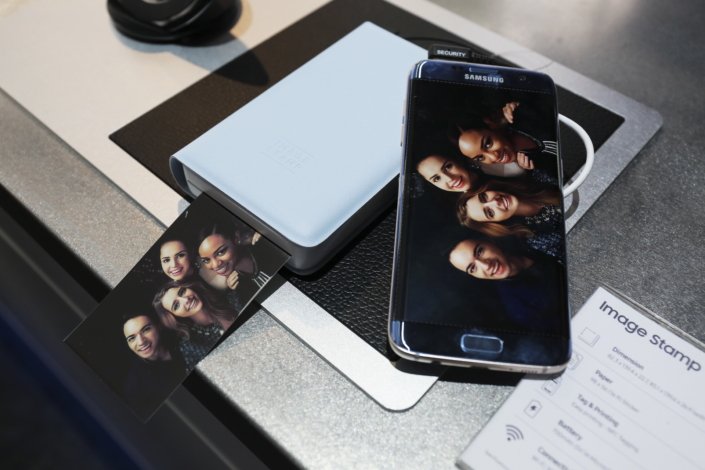
Before choosing a large print, check the actual pixel size of the image. Bigger prints need more pixels to stay sharp. Digital photo printing works best when the file has enough detail for the selected size instead of being stretched too far.
Crop with the Final Frame in Mind
Cropping can improve a smartphone photo, but it also removes pixels. A tight crop from a phone picture may look strong on screen and weak in print. Keep enough image area so the final piece still has detail after trimming.
Leave Space Around Faces
Printers and frames may trim a small amount from the edges. Keep faces, hands, and important objects away from the border. This matters even more when ordering photo printing services for gifts, albums, or wall displays.
Pick Paper that Suits the Smartphone Photo
Glossy paper adds shine and contrast, while matte paper gives a softer look with less glare. Luster paper is often a balanced choice for portraits and events. The right paper can make a good file feel richer without fake editing.
Review Sharpness at Full Size
Zoom in on the picture before ordering. If eyes, text, or small details already look blurry, a larger print will not solve it. For high-quality digital printing, sharpness should be judged before upload, not after the package arrives.
Prepare Color and Detail Before Ordering
Make Small Edits Only
A little brightness, contrast, and straightening can help. Heavy filters can crush shadows, oversaturate colors, and make skin look unnatural. Keep edits gentle so the print still feels like the real scene you photographed.
Keep Skin Tones Realistic
Phone screens often make faces look brighter than they will appear on paper. Avoid pushing warmth, smoothness, or clarity too far. Natural skin tone is one of the easiest ways to spot a professional-looking print.
Reduce Noise Carefully
Low-light smartphone photos often contain grain. Noise reduction can help, but too much makes faces and hair look waxy. If the image was taken in a dark room, choose a smaller size or ask a shop to review it before printing.
Use the Right File Format
JPEG is usually fine for everyday prints when saved at high quality. HEIC files from some phones may need conversion for certain systems. Keep the original file safe, then make a clean copy only when needed for upload.
Compare Screen Brightness
Most phone screens are brighter than printed paper. If your screen is very bright, the print may look darker than expected. Lower screen brightness before judging an edit, especially when preparing to order smartphone photo prints online.
Choose a Printing Option That Protects Quality
Choose Trained Team
A skilled local digital printing shop can inspect resolution, crop, paper, and color before production. A good smartphone photo print shop will tell you when a file is too small for the size you want, instead of printing a weak result without warning.
Use Online Ordering
Online tools are convenient, but do not rush through previews. Check crop lines, orientation, paper finish, and warning messages. When placing an online order, upload the original file rather than a screenshot or saved social media copy.
Color Correction
Some labs offer color correction before printing. This can help with dull color, uneven brightness, or mild skin tone issues. In digital photo printing, a careful correction can save a good image from looking flat. Ask whether correction is automatic or reviewed by a person, because the results can feel different.
Select Proper Size
Not every phone photo should become a poster. A sharp daylight image may handle enlargement, while a dim indoor picture may look better as a smaller keepsake. Good photo printing services should guide you toward a size that fits the file.
Store Prints the Right Way
Print quality also depends on care after pickup or delivery. High quality photo printing can fade or scratch when photos sit in the sun, moisture, or heat. Use clean albums, frames, or sleeves so the color and surface finish stay attractive over time.
Common Asking Questions
What size is safest for phone pictures?
Small and medium sizes are usually safest, especially four by six, five by seven, and eight by ten. Larger sizes can work well when the original is sharp, bright, and not heavily cropped.
Why do phone photos look sharp on screen but soft on paper?
A phone screen is small, bright, and forgiving. The paper shows blur, noise, and compression more clearly. That is why an image that looks perfect on a screen can look weaker once printed larger.
Should I edit my phone pictures before printing?
Yes, but keep edits light. Adjust brightness, crop carefully, and fix small color issues. Avoid strong filters because they can remove natural detail and make the final print look artificial.
Is matte or glossy better for family photos?
Glossy gives stronger shine and contrast, while matte reduces glare and fingerprints. For family portraits, many people like luster or matte because faces look softer and the print is easier to handle.
Can old phone pictures still print well?
Yes, many older phone pictures can print nicely at smaller sizes. The best results come from original files with good light and low blur. Very small downloads or screenshots should usually be avoided.
To Sum Up
Printing phone pictures well is mostly about protecting the original file and choosing the right size for the amount of detail you have. Smartphone photo printing becomes much easier when you avoid social media downloads, screenshots, heavy filters, or extreme crops. Check the file, preview the crop, choose paper carefully, and work with a printer that understands photo quality.
For mobile photo printing that looks clean and lasts, match the image to the right size instead of forcing every picture into a large format. When photo printing is handled with care, everyday phone pictures can become sharp keepsakes, clean wall prints, or thoughtful gifts.
If you want to order photo prints online and need help choosing the right size, finish, or file setup, contact us and get a quote before placing your final order.